

At some point, we all get careless: Because when searching for new information online, we end up on websites and webshops almost daily that we have never seen before. Mostly, we don't think anything of it and look around the homepage we've landed on. We almost never pay attention to security rules or possible security vulnerabilities of websites, let alone check the page. And if we don't find anything on the website, we leave it again. Sounds harmless, but it can be very dangerous. Because many pages and shops on the internet are insecure, and there is a risk of catching malware, a virus, or a Trojan, disclosing sensitive data – or being ripped off by a fake webshop. Because theoretically, any hacker can create a website on the internet via a Content Management System, invent an item, and rip off their "customers" with it.
In this blog post, we give you some tips and tricks on how to recognize insecure sites, fake webshops, and bogus companies online and protect yourself from them. We will also provide you with some links that you can use to check questionable sites online and thus surf the web more safely.
Is the website secure? A first check
Have you landed on a website you don't know? Then pay attention to the following four tips. These are a good first indicator of whether a website is trustworthy and reputable (and therefore probably also secure):
- The padlock symbol next to the URL is present
- The communication protocol is HTTPS, not HTTP
- Imprint and privacy policy are available
- For a webshop: All (or at least the most common) payment methods are accepted
Important: These points are only a first indicator. Although most reputable websites have an HTTPS protocol (S, by the way, stands for security). The padlock symbol and HTTPS stand for a secure connection. However, they alone are unfortunately no guarantee that you can really trust this website or shop. Nevertheless, you should always check this.
Rule of thumb: Never enter your password, bank details, or other sensitive data on a website that does not have a padlock symbol. The same applies to purchases in webshops without an imprint or privacy policy.
TLS certificate or SSL certificate for data transfer
TLS stands for "Transport Layer Security", SSL stands for Secure Sockets Layer. These are protocols for encrypting data transmissions on the Internet, with SSL being the more well-known term. Whenever you disclose data, look for a TLS or SSL encryption – meaning an SSL certificate on the respective provider's or operator's website. With the padlock symbol and HTTPS in the browser bar, the corresponding certificates are present, and the risk of your data being intercepted (keyword phishing) is low.
Website Security: Choose the right browser settings
Most internet browsers can already tell from a website's certificate whether it is secure or could pose a risk, and they issue warnings. You should definitely take these into account. In addition, you should make the following important settings in your browser:
- Block pop-ups and plugins
- Send a "Do not track" information to all visited websites
- Suppress insecure Flash content
- Warn about downloads from insecure sources
- Warn about pages that access PC hardware like speakers, microphone, or camera
To do this, simply go to your browser's privacy and security settings and adjust your data protection.
Example Firefox
With this browser, you have the option to choose between
- Standard protection: A balanced blend of performance and security.
- Strict protection: Top for security. However, this could lead to some websites loading longer or becoming inaccessible.
- Custom protection: Here you set the filters manually.
Example Google Chrome
The security settings in Google Chrome are a bit more individual, as it only offers a custom mode where you have to set all parameters yourself. However, most of the menu items here are self-explanatory and easy for users to use.
Website Security: Helpful Tools
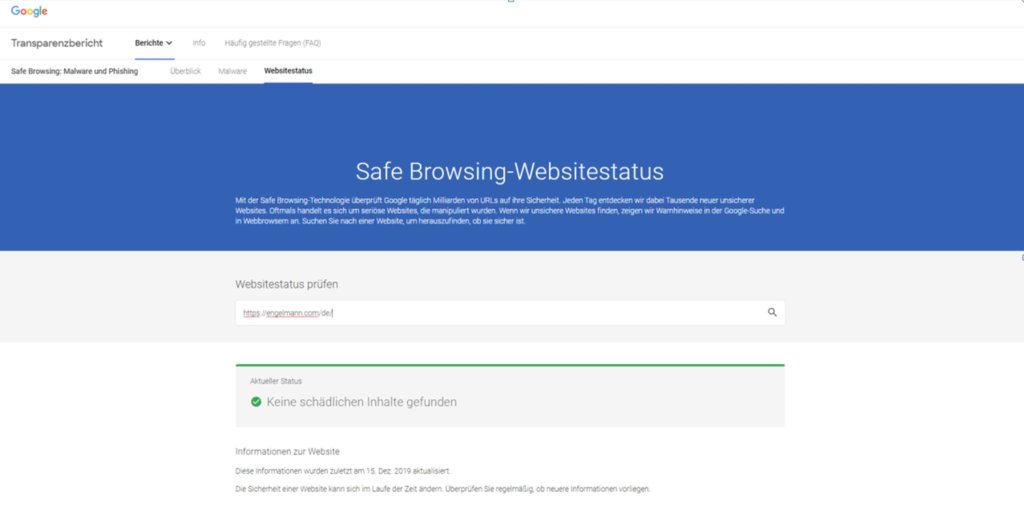
Are you on a page and suspect it's insecure? Then click on one of the following links and enter the corresponding URL:
Or look for the site's impressum and dial the phone number provided there. Especially if it's a webshop you're unsure about, this is the best way to get information. If the phone number doesn't exist, or you can't get out of the waiting loop, stay away!
Website Security: These services provide you with information about the status of the visited page in no time.
Website Security: Secuperts Cyber Shield
The tips and tools mentioned here help you identify online dangers and check suspicious pages. However, if you have landed on a virus-infected site, it may already be too late.
To prevent this danger, we have developed Secuperts Cyber Shield. So, if you want to do something for your security beyond the free online tools, Cyber Shield is the right choice.
With Cyber Shield, you get software that allows you to create a closed and completely secure working environment based on Linux – your own virtual sandbox. With Cyber Shield, you can access all web content and do whatever you want in this protected environment. Malware, faulty code, viruses, Trojans, and the like cannot leave this isolated area and never reach your system. This is how you protect yourself reliably. Even insecure email attachments, an unknown link, or downloads from a dubious server are no longer a serious threat to you.


