

Don't you sometimes find it annoying that when planning trips and routes in Google Maps, you can only enter 10 destinations as a route? At least, I do. Especially after a longer (round) trip where I visited more than 10 places/destinations. After the vacation, I like to create a map, simply to see which paths I traveled and where I actually was. This map or these maps then contain everything: routes, places, stopovers. Every destination and every point on the plan that I headed for as a travel destination is also displayed.
These maps with all or the best stops are then always part of a digital photo album. 10 stages for the annual vacation: If you're not taking a package tour with only one destination in one place, that's almost never enough. But there's a trick to display maps with more than 10 destinations using the Google Maps route planner. 25 stages in one route are possible. While this takes a little more time than planning within the app, it works. We'll explain how in this blog post.
In the URL, Google Maps is not limited to 10 destinations
The Google Maps service or app is certainly familiar to everyone. First introduced as a desktop version in the USA in 2005 and expanded with images and maps for Germany in 2006, this service is now extremely popular and an important tool for any travel planning. So far, so good, but the interface of this route planner refuses to add more stages after 10 destinations. So, does that mean only 10 destinations are possible in Google Maps? No. We'll show you how to integrate more stages into your route planning with a simple trick – at no additional cost – in this step-by-step guide.

1. Create three separate maps
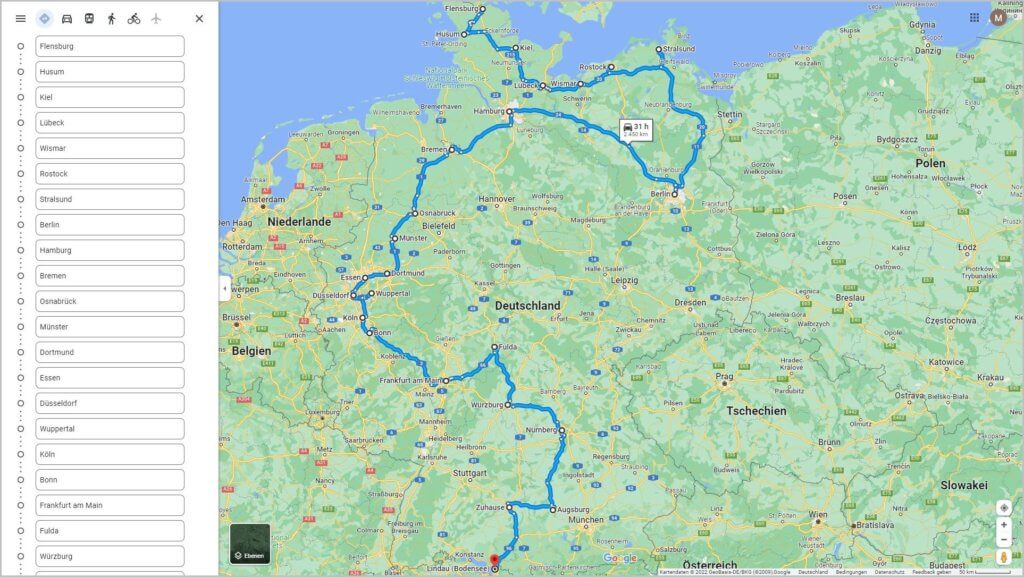
In principle, Google Maps can display more than 10 destinations on a map. However, you have to add these destinations via the URL. In the browser, the route planner stops after 10 entries. This function is not available here. So, to get URLs with Google Maps and the 25 destinations, you first need to simply open Google Maps and enter routes with 10 destinations. After the first tour with 10 destinations, open a second tab where you simply continue the route with 10 more stages. Then open a third tab with the last 5 destinations (caution, if there are more than 25 in total, it won't work). Your three partial routes could then look like this:


2. Copy the URLs of all three routes
The easiest way now is to open your editor or a word processing program. In each created map, click on the URL and copy it (Ctrl + C). Then paste the address into the program you just opened (Ctrl + V). As a result, you now have three URLs copied one below the other.
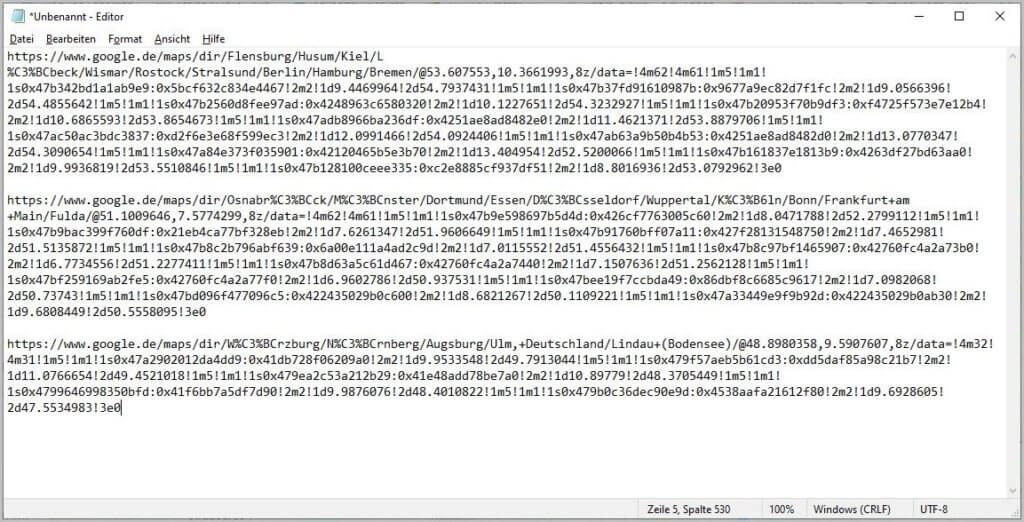
3. Merge the URLs
Now it's time to combine these three URLs into a single one. To do this, delete the part of each URL that appears after the "@". Leave the forward slash "/" before the @.

Now, in URLs two and three, delete the part "https://www.google.com/maps/dir/". This time, delete the forward slash "/".

Then remove the spaces and you have one URL. Make sure that you have exactly one forward slash "/" between URL 1 and 2, and between URL 2 and 3. One slash too many or one too few are the most common sources of error here. The finished URL will then look like this:

4. Enter URL in the browser
All you have to do now is enter your finished URL into a browser window. And just like that, you have a route with up to 25 stages. Just give it a try.
A little side note: If you use the less well-known route planner from Bing, you can also enter 25 different destinations without any tips and tricks. You might want to try Bing...
More useful things for your trip or your photo album afterwards?
As described at the beginning, I always use this trick to create maps after round trips, where I can see the entire tour at a glance. This map is then usually page 1 of my digital photo album.
In addition, for the pictures I select for the photo albums, I like to use the tools Photomizer and Simply Good Pictures. Especially in unfavorable lighting conditions, these tools immensely help to "pimp up" my smartphone pictures (Android) and make them "photo album-worthy." Because ultimately, what matters are the pictures within the album, and not the map on which the route was traced...


