

No matter what you do with your PC or what you are working on, you always produce temporary files. Not all of them are deleted after use. Many remain and accumulate in the Temp folder on your hard drive. This can quickly become annoying, especially if your PC has limited storage space. In this tip for Windows 10, we'll show you how to find these files and easily free up storage space.
Finding Temp Files: Freeing up Storage Space for Windows 10
You can manually find these files at any time with the following 2 inputs:
- Press the Windows key + R key combination.
- Enter the parameter %temp% here.
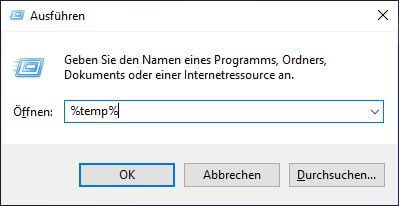
Your Temp folder will then appear, where you can remove all these files by pressing Ctrl + A and Delete all. Note: If files cannot be deleted, you either still have an corresponding file open or the file is still needed for a process. In that case, you will get an error message. You cannot do anything wrong in any case.
This method quickly achieves the desired result. However, if you don't want to perform these steps several times a month, you can automate this process since Windows Update 1803.
Automatically Delete Temporary Files from Windows 10
Setting up this automation is very simple: Open the system settings. For example, choose the path via the Windows icon. Alternatively, you can also access Windows settings directly by pressing Windows+I. Then click on System, then on Storage, and switch the Storage Sense toggle to On. Important: This will not only delete temporary files but also files and contents of your Recycle Bin.
Since Update 1803, Windows 10 has included the Storage Sense option. This function automatically frees up hard drive space. However, the automation is not yet complete. If Storage Sense is "On," nothing will change at first – presumably – because Windows only performs this optimization when hard drive space becomes low. As long as you have more than 10% of your total storage capacity available, the function remains inactive.
If you want to change the criteria and interval of this optimization, simply use the link and "configure Storage Sense". Using the "Run Storage Sense" drop-down menu, you can determine the period for this automatic optimization yourself. Keep the default setting "Delete temporary files that my apps aren't using" active.
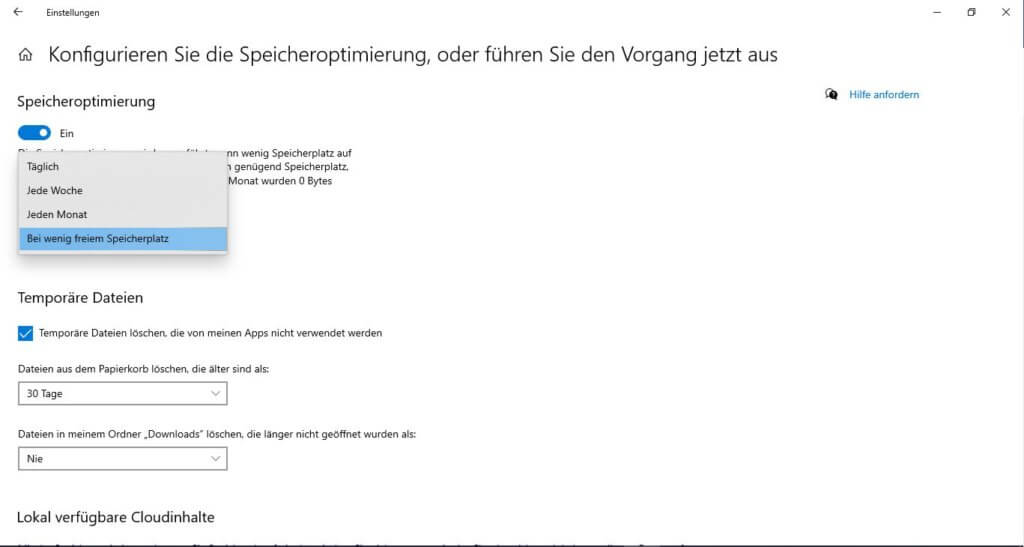
Furthermore, you can also automate the deletion of your Recycle Bin and automatically clean the default download folder of Windows 10. However, for these two options, you should carefully consider whether and how to activate them. Because what is deleted from the download folder or Recycle Bin is not gone, but it is no longer locatable in the system directory and can only be recovered using special software such as the Rescue Stick. The "recover accidentally deleted data" function of the First Aid Kit offers optimal help here.
Do you want to free up even more storage space for your Windows 10?
If you want to remove additional data clutter from your system in addition to temporary files, we recommend the AVG TuneUp tuning tool. With just a few clicks, you can remove data clutter from over 200 programs. Anyone interested in this software can purchase a 2-year version of the tuner for €29.99 (instead of €69.98) via this link.


