

Dear buyer, you have chosen a product from Engelmann Software GmbH, and we sincerely thank you for your purchase. For those who are buying software for Windows from us or over the Internet for the first time, we explain step by step in the following article how to get, install, and activate Engelmann Software and how to easily enter the serial number using Copy & Paste.
1. Check your emails
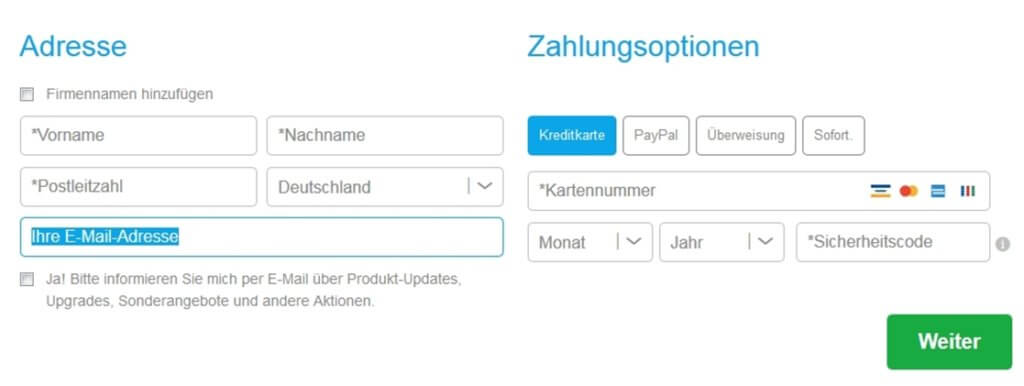
During the payment process, you provided us with your email address. After the payment process is complete, you will receive an email from us with all relevant information. You can recognize the email by the subject line, which contains the reference number and the name of the software purchased. You will also find us in the sender field.

Note: Why cleverbridge?
Strictly speaking, you do not receive the email directly from us, but from cleverbridge, which sends the email on our behalf. The reason: Since setting up an in-house delivery and payment system is extremely complex and technically challenging in terms of security, we - like most other software vendors - use an external service provider for processing. Our service provider is cleverbridge, an e-commerce specialist who has been doing exactly that for many years: supporting software manufacturers like us in selling digital products. This is also why the invoice indicates that your credit card will be charged on behalf of cleverbridge.
2. Your email contains three important pieces of information
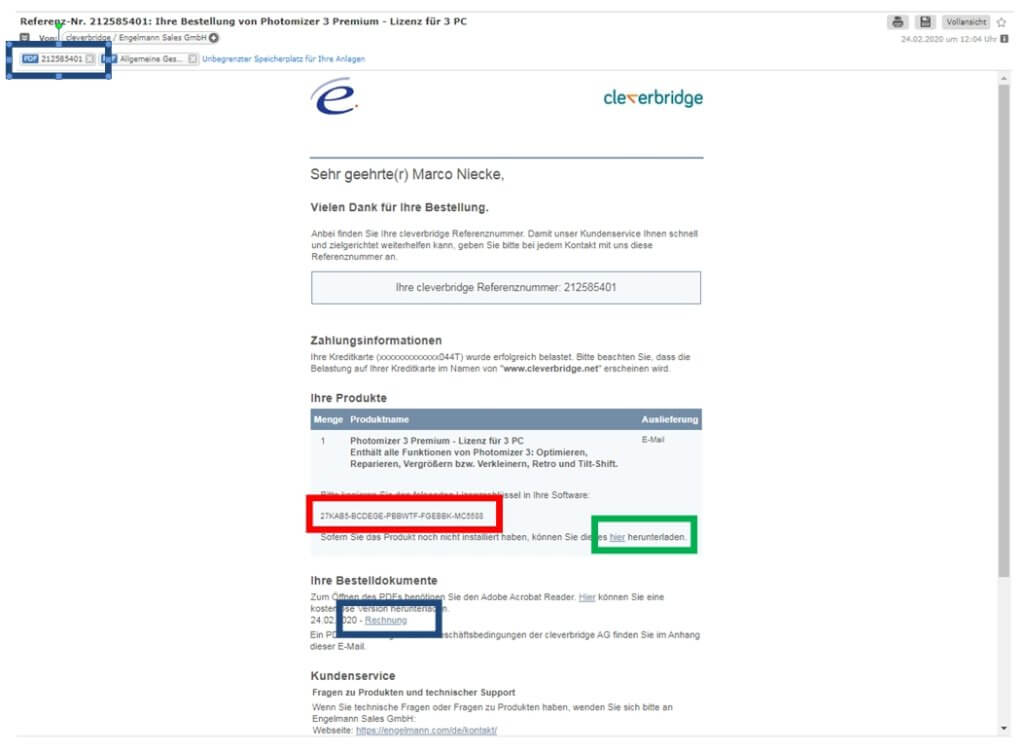
In the image below, you can see an example email that customers receive after ordering the product Photomizer 3 Premium - a tool for editing and optimizing photos. Please open the email.
You will find three important pieces of information here:
- The invoice, which you can either download as a PDF or view in your browser by clicking on the "Invoice" link. We have highlighted in blue the relevant areas where you can access the invoice.
- A link through which you can download the purchased software directly to your PC. Installation then follows. Since the link within the email is usually somewhat inconspicuous and represented by "here", we have highlighted the location in green.
- The license key is the most important information and, strictly speaking, what you paid for. Only with the help of this unique and individual number can you unlock the purchased software and use it after installation. In the image below, we have outlined the license key in red.
Note: Only download the software if you have not already done so. Sometimes there are also limited or time-limited software versions that only become full versions by entering a license key. In this case, a purchase can also be initiated from within the software. You can find out what type of software you have in the software's settings. If you have a time-limited version, you have already installed the software and only need to activate it.
3. Please download the software
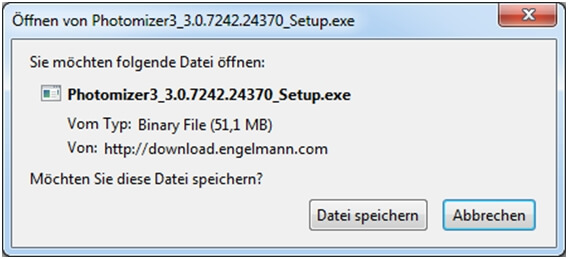
By clicking on the linked "here" in the email, another window will open and the software download will start automatically. This process may vary slightly depending on the browser and browser version. At the end of the download, you will find a file labeled xxx_Setup.exe in your downloads folder. Or you will find the file on your desktop.
4. Install and activate the Engelmann software
Most people are probably familiar with the process of installing and activating software. If not, here's a quick run-through in screenshots and images using Photomizer 3 as an example.
- Please start the installation process by double-clicking the xxx_Setup.exe file.
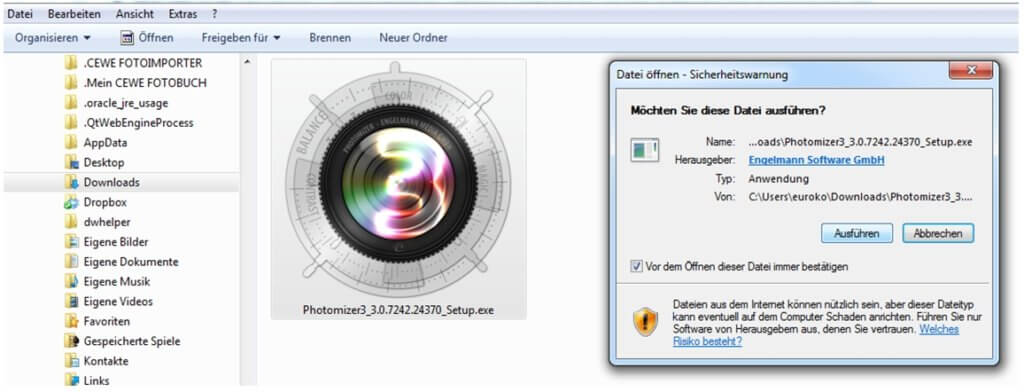
- Click "Run" and the software installation can begin.
- Check the boxes next to the license terms and data privacy policy, then click "Install".
- The installation will then proceed automatically.
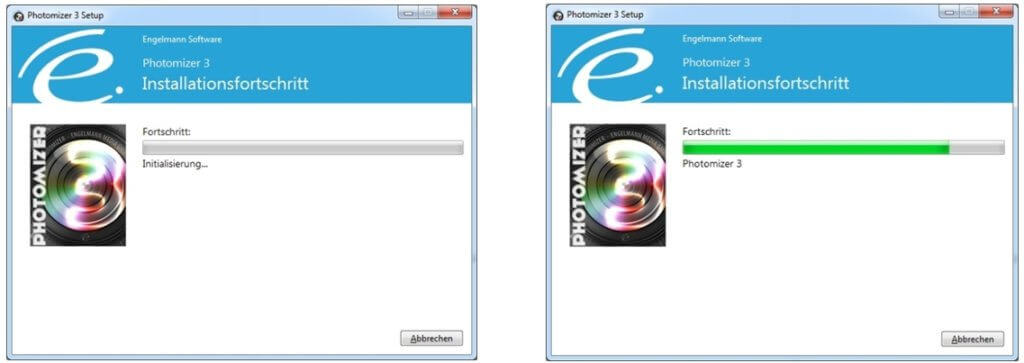
- Finally, click "Run" again.
- Now launch the software.
5. Enter license key and activate software
Depending on the software you have installed, the start window should look something like this example: The software in the background, and in the foreground a window or button where you can enter the license key.
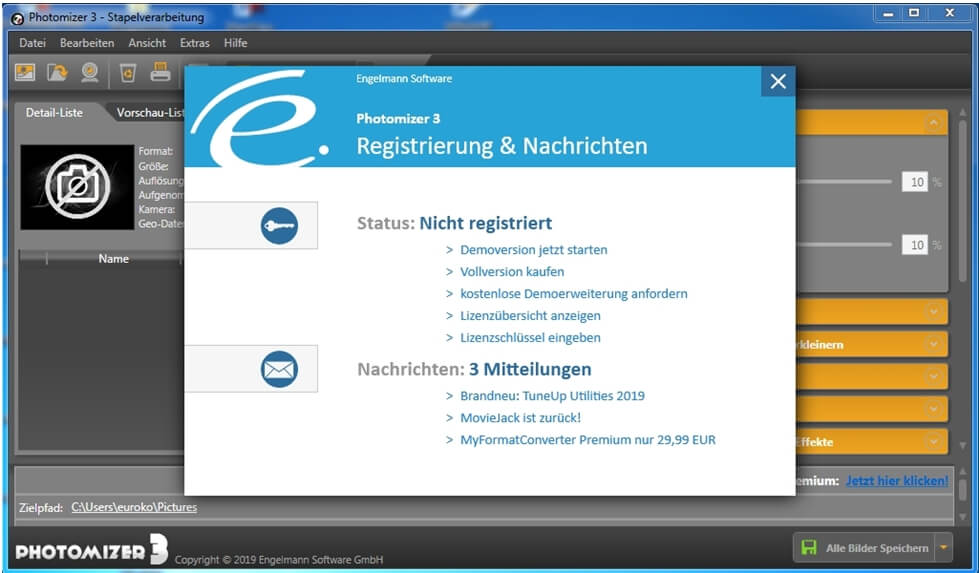
When you first start the newly acquired software, please select "Enter license key." Depending on the software, instead of "Enter license key," it might say something else such as serial number, product key, license key, etc.
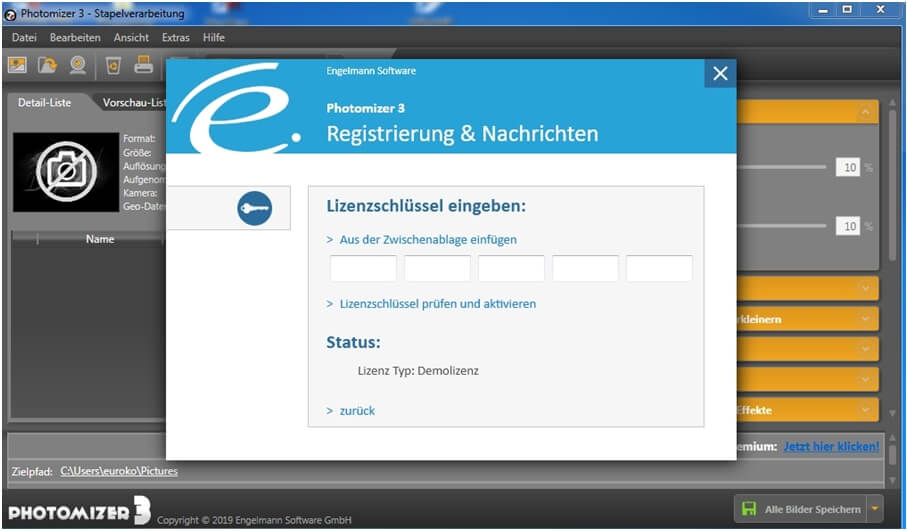
There are now 2 ways to enter the license key for Engelmann Software:
- We recommend: Copy & Paste
- Also possible: Manual entry
1. Copy & Paste
The easiest, fastest, and safest way to do this with Windows programs is with two simple keyboard shortcuts. To do this, highlight the entire license key from the email with your mouse. Caution: Please make sure not to highlight any spaces before or after the license key.
- Then press "Ctrl+C" = Copy to clipboard.
- Now click into the first box where the serial number should be entered and press "Ctrl +V" = Paste - or click on the "Paste from clipboard" field.
Caution: Not every Windows software has the "Paste from clipboard" or "Save to clipboard" button. So please remember the command "Ctrl +V".
The entire license key will then automatically be inserted across all 5 fields. If you are not yet familiar with this combination, be sure to try it out. It will help you almost daily when working with your PC.
2. Manual entry
This method is self-explanatory, but it takes longer and is much more prone to errors. Here you take the email and write down the license key it contains:
27XXX5-BCXXGE-PXXWTF-FGEXXK-MC5XX8
And enter this combination into the corresponding 5 fields.
But beware!
When typing, there are several ways to make mistakes.
- You need to be extremely accurate when typing; don't mix up the order and don't forget anything. Only a 100% correct key will unlock the software.
- And please pay attention to capitalization.
- You must be able to distinguish similar characters such as "0" (the digit zero) or "O" (the uppercase letter O). Also difficult to distinguish: B, 8 and g; k and K, etc.
- Especially tricky is the difference between "I", "l", "J" and "|" (the first is a capital "I", the second a lowercase "L", the third a capital "J" and the fourth the "vertical bar special character") - these "characters" also often appear in serial numbers.
Our tip:
Always use Option 1 - Copy & Paste. This will save you time, ensure everything is done correctly right away, and potentially save you from back-and-forth communication with software support. Only if you have purchased your software as a CD or DVD from a retail store and not online is typing the serial number the only solution.
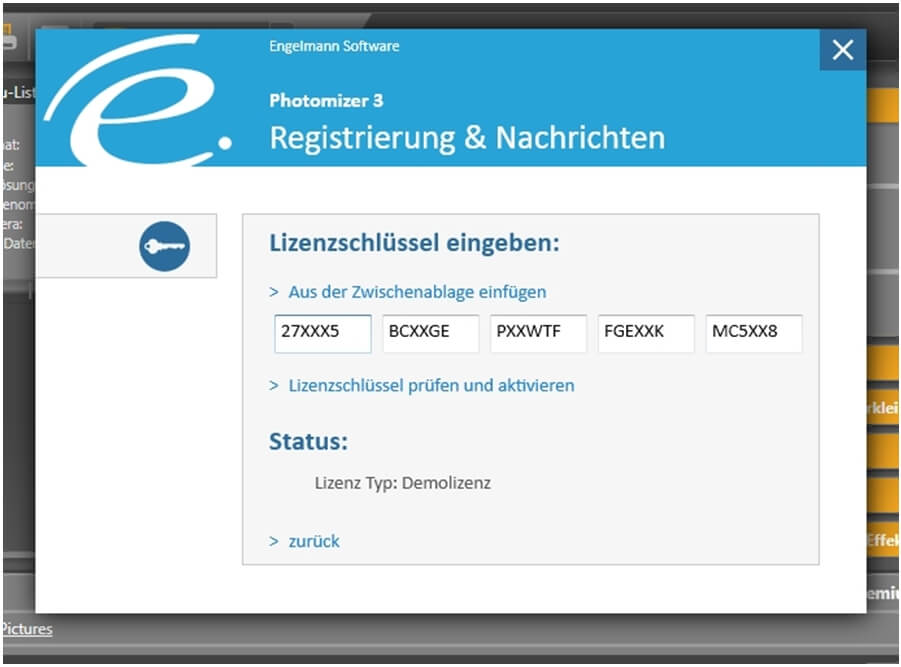
You have successfully entered the serial number:
Now all that's left is to click "Check and activate license key". If you have correctly and completely inserted the license key, you will unlock the software - or turn a restricted/expired version into a full version. You will now also see this if you go into the software's settings. With this, you have successfully installed and activated the PC program purchased from Engelmann Software.
If you like the program you purchased and are interested in more software: Then you will find on our homepage a list of our most popular tools - including our Secuperts series - software with settings for more security in your daily use of your Windows PC.


