

If your PC suddenly acts up, Windows keeps crashing, or certain things no longer work as usual, you have several options. Recovery tools like the Rescue Stick or tuning software, for example, can help you clean up and repair your PC. However, it's often also a good idea to completely reinstall your PC.
Create a list of all Windows programs yourself
To be able to continue working as usual after reinstalling Windows, you should have a list of all your current Windows programs ready before reinstallation. So that you don't have to write them down, here are a few tips on how to create this list easily yourself.
For Windows 7, Windows 8, Windows 10 and Windows 11
Go to System Information:
You can open System Information using these two commands, among others:
- Windows + R
- Here you enter this parameter: "msinfo32.exe"
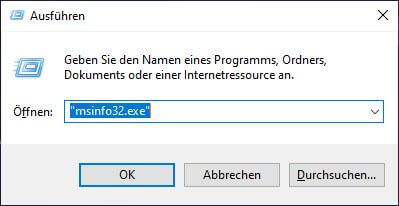
Within System Information, under the Software Environment tab, select the Program Groups node. Here you will find all installed programs, which you can get into a list as follows:
- Export File ...
- Save and back up this text file
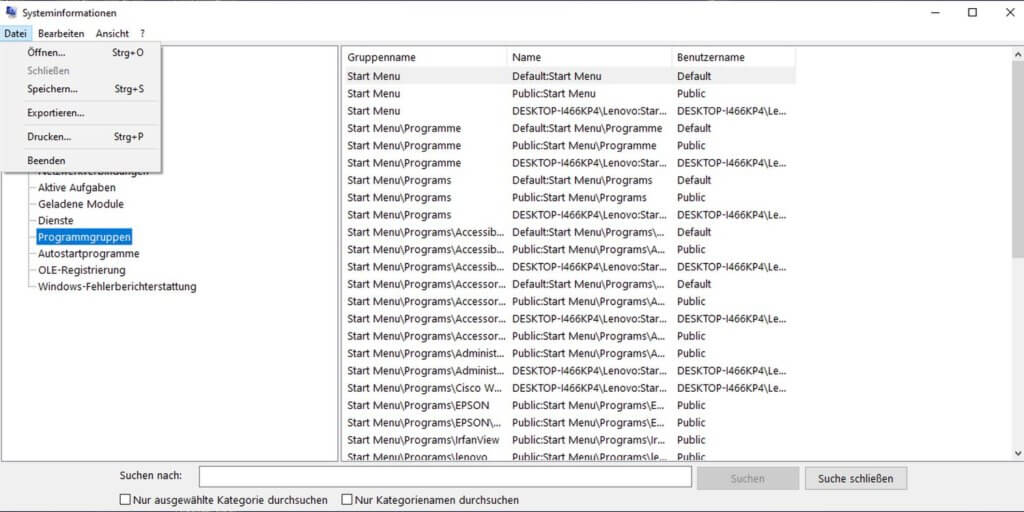
Admittedly, the list looks a bit cluttered as a saved .txt file, but if you select the content of this .txt file and then transfer it to Excel, you'll have everything clearly organized in one list.
List of all programs: Option for advanced users on Windows 10
For Windows 10, there is another way to create this list. This is a bit more complicated, but the list is clearer afterwards. For this, you use the "Windows PowerShell" tool. You can find this in your programs.
In Windows PowerShell, enter this command and click Enter:
Get-ItemProperty HKLM:\Software\Wow6432Node\Microsoft\Windows\CurrentVersion\Uninstall\* | Select-Object DisplayName, DisplayVersion, Publisher, InstallDate | Format-Table –AutoSize > C:\XXX\Programmliste.txt
Note: You must replace "XXX" with your desired file path - e.g. C:\New-Folder\Programlist.txt
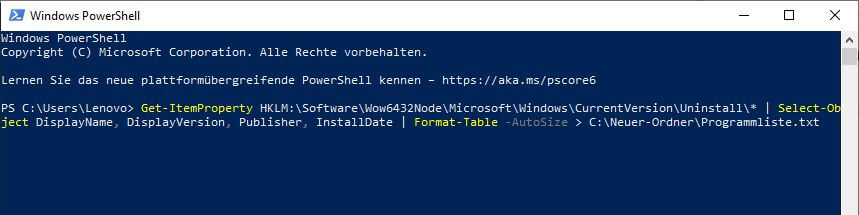
Of course, this path must already exist. You can also have the list created on another partition. You can also choose any name for the document. However, you should leave the first part of the command unchanged.
And one last note: Portable programs that do not need to be installed will not appear on this list.
Have fun trying it out!


