

Globally, WhatsApp is the most popular messaging app for smartphones. Around 2 billion users send messages (text messages, voice messages) and files via this messenger app. Some also make calls and video calls via WhatsApp. In Germany alone, approximately 60 million people use the app every day for messages. However, despite its high popularity, many use the messaging service rather restrictively. Many new functions and helpful tricks of WhatsApp are unknown and not used.
In this blog post, we want to show you 11 useful functions, tips and tricks of this app – for iPhone and Android. You can expect interesting facts about messages, voice messages, typing text, chat, individual contacts, the menu and much more. Newcomers and even WhatsApp experts will surely discover something new here.
1. Use WhatsApp as a notebook
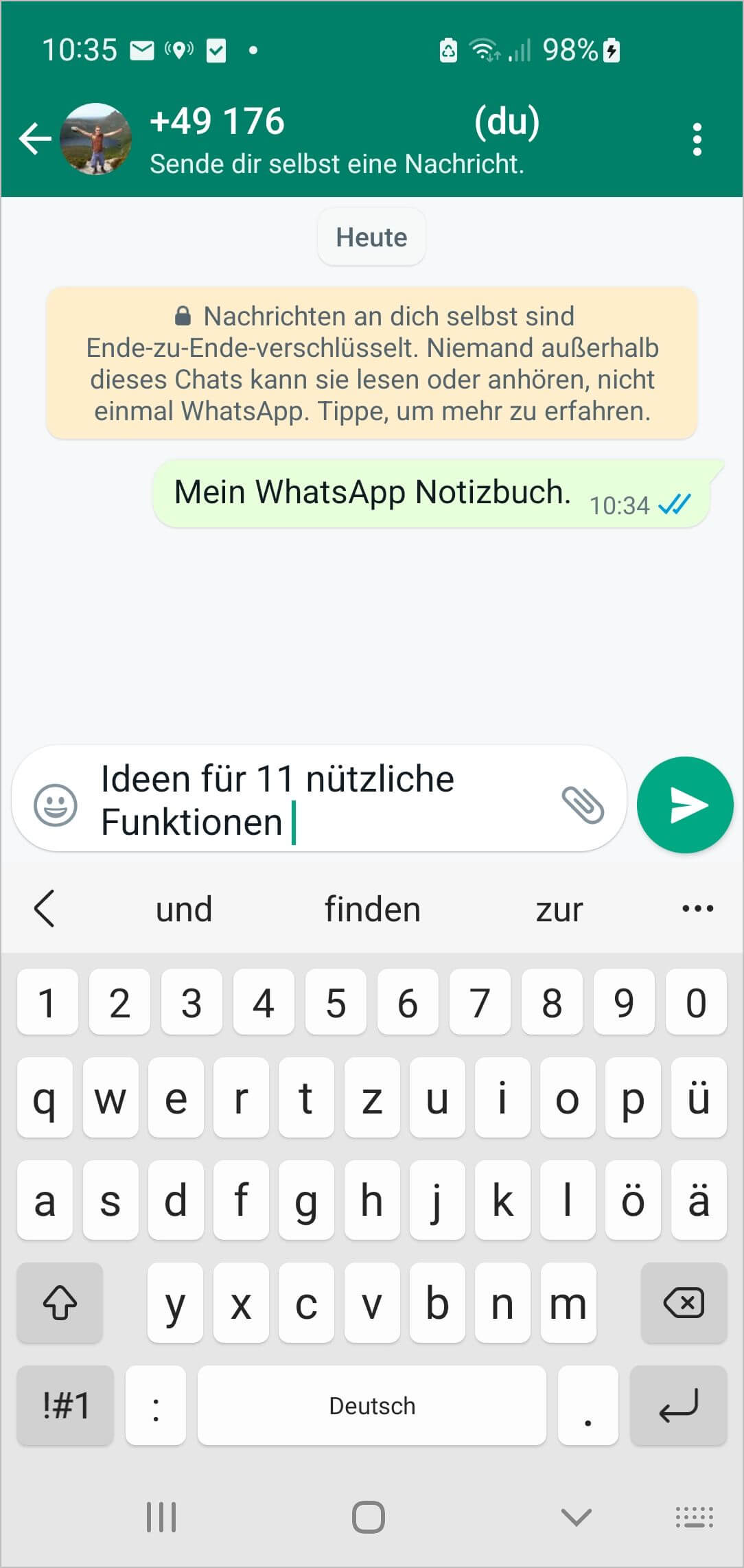
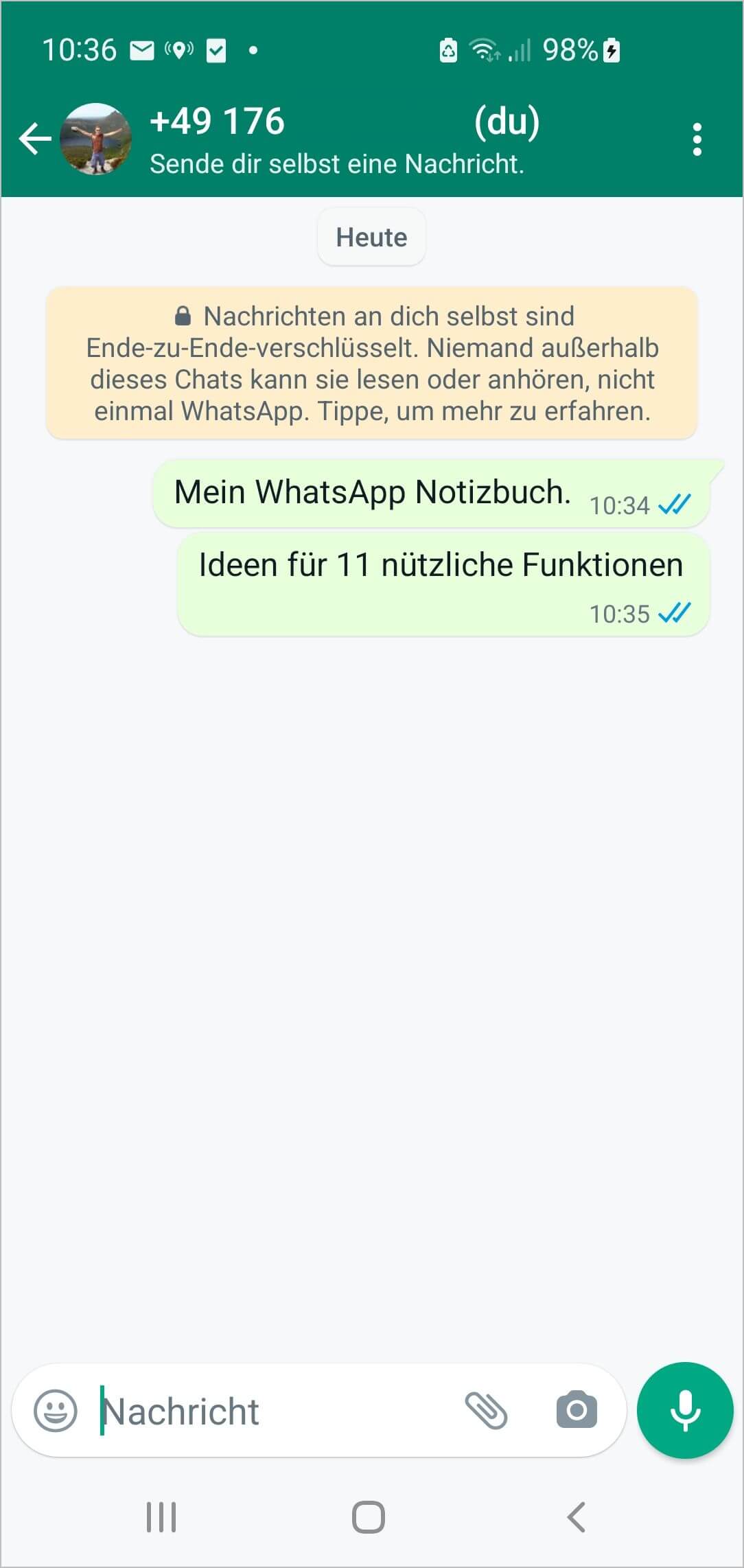
You can use the app as a notebook. Simply create a new chat with only yourself as a member and send words, text, notes, links from the web, and important data here. Here you can read your messages at any time, view your videos, and also, for example, create a shopping list – and then delete it. A good tip for all users who spend a lot of time on WhatsApp and for whom this app is a priority in organizing their daily lives.
2. Reply to specific messages
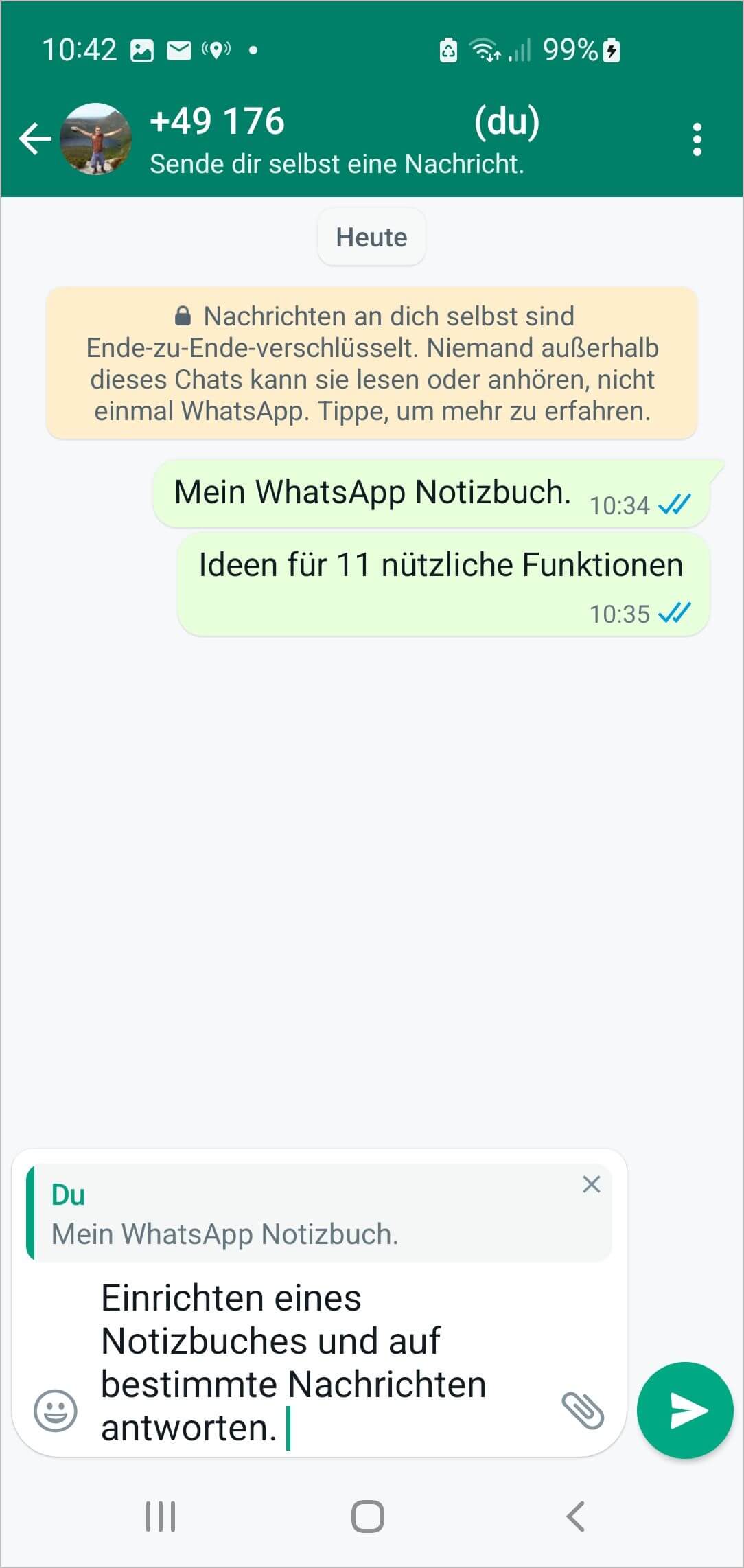
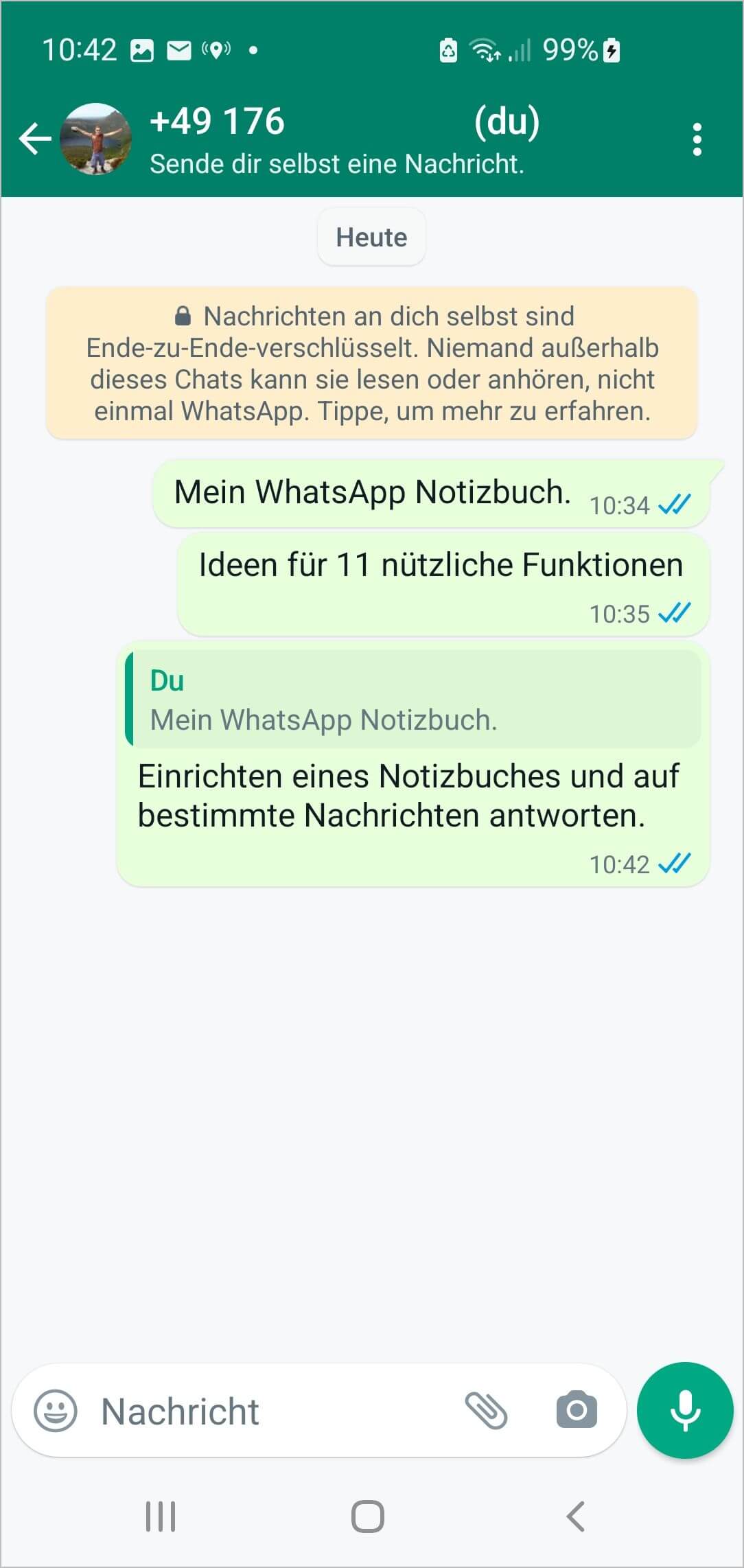
Sometimes chats can get wildly jumbled. Before you answer the first question in the app, the second and third questions are already coming up in the chat. If you type your answer now, which question and which point does it refer to?
This trick helps here. If you want to reply to a specific question/message, hold it down briefly (about 1 second). Then tap "Reply" (left arrow symbol) and type your answer. This quotes the original question or message and makes conversations easier to understand. This is especially helpful in group chats, as you can see at a glance - without spending a lot of time re-reading - which text was for which message.
3. Communicate with multiple people via Broadcast Lists
If you want to send a message to multiple people, but NOT within a group, you can use broadcast lists. You can create a list of contacts and send a message to several contacts at once without creating a group. Creating it works similarly to a group: three dots symbol, New Broadcast, and then select who should receive the message.
4. Mute group chats
You're probably familiar with how to create groups in WhatsApp to chat with multiple people at once. The kindergarten WhatsApp group, the shared flat WhatsApp group, the soccer WhatsApp group, the bachelor party WhatsApp group, the game night WhatsApp group, the "What are we doing this Friday" WhatsApp group... You know what I'm talking about. A chat is set up in the app for every occasion.
And you probably also know the dynamic that almost always arises in these groups. In addition to information, endless comments and trivialities are exchanged at some point, followed by bad jokes. And for every emoji or thumbs up, your app or smartphone rings.
What many people don't know, however, is that you can also mute these groups in the app. Simply click on the group and select "Mute". You can then choose how long you want to stop receiving notifications about new incoming messages – eight hours, one week, or forever. You will still receive the messages, of course; when muted, you will just no longer be notified by a sound (and they will not appear on the home screen). A useful feature if things get a bit too much in a group. Oh, and by the way, no one in your group will know that you have muted them.
5. Share files
Images, GIFs, videos, music, voice messages and the like: these are all happily sent via WhatsApp. If you want to share one of these files that you have received with another person, simply click on the small arrow next to it (forward) or briefly press and hold the corresponding message so that it is marked/activated and use the "Forward" arrow (right arrow symbol) at the top of the menu. Then simply select the contact and send (or forward).
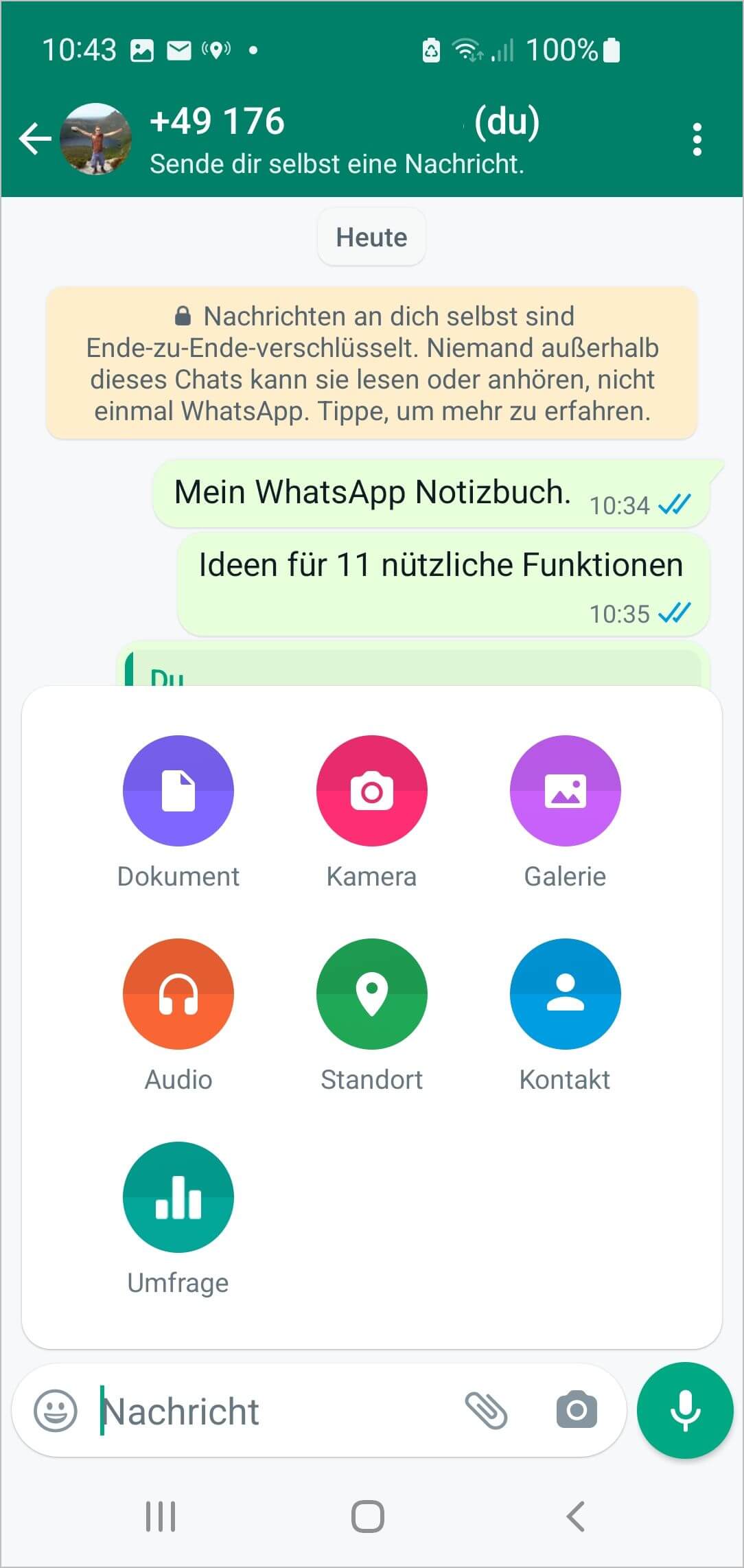
By the way, you can also transfer data stored on your smartphone, such as pictures from your camera, just as easily and quickly. Simply press and hold a file (an image) briefly, send it, and add the recipient via the WhatsApp icon.
Alternatively: If you have the Messenger app open and not the corresponding image, simply click on the paperclip icon and select the folder where the file is located. Small trick: If you want to send an image, for example, go via the "Camera" icon. This is usually a bit faster.
6. Send voice messages
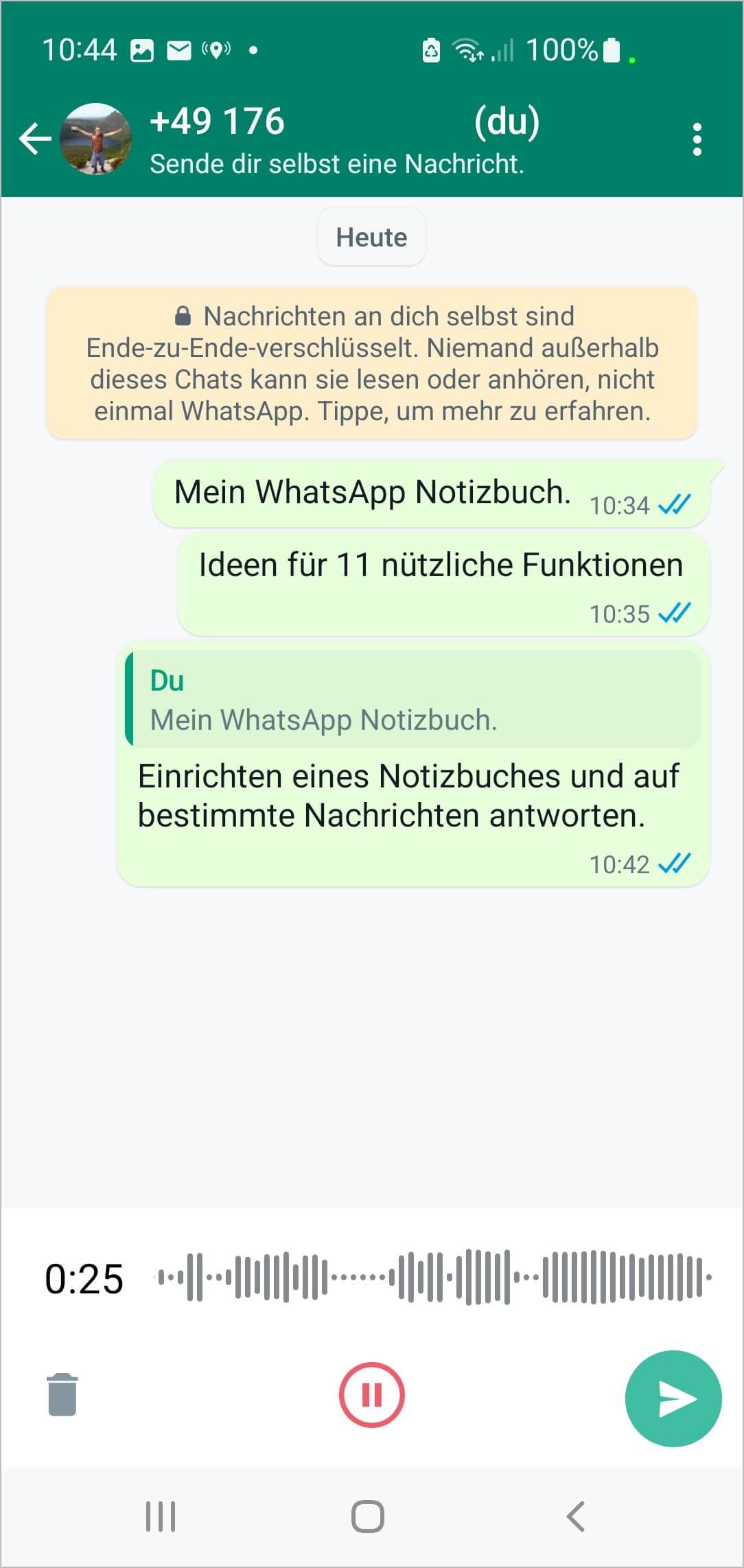
Sometimes you just have so much to say that typing it all out in the app's chat becomes difficult. Or you only have one hand free. In this case, a voice message is a good alternative to a fully written message. Simply tap the microphone icon in the bottom right, hold the button, speak, and release. The message will then be automatically sent via the app.
- If you misspoke or don't want to send what you said as a message or want to start over, simply swipe left instead of releasing.
- If you want to speak and then listen to the voice message again, swipe up. Now you can release the microphone symbol completely, record your message, pause it, and also play it back – and then either send or delete it.

7. Block unwanted contacts
It can quickly happen that your phone number ends up somewhere where spammers and the like pick it up, sending you unwanted advertising or messages via WhatsApp. You can block such unwanted contacts in this way:
In the menu: Settings, Account, Privacy, Blocked Contacts
Here you now have the option to add all existing contacts and numbers to this list. Messages from this contact will then be blocked.
8. Use the Star function
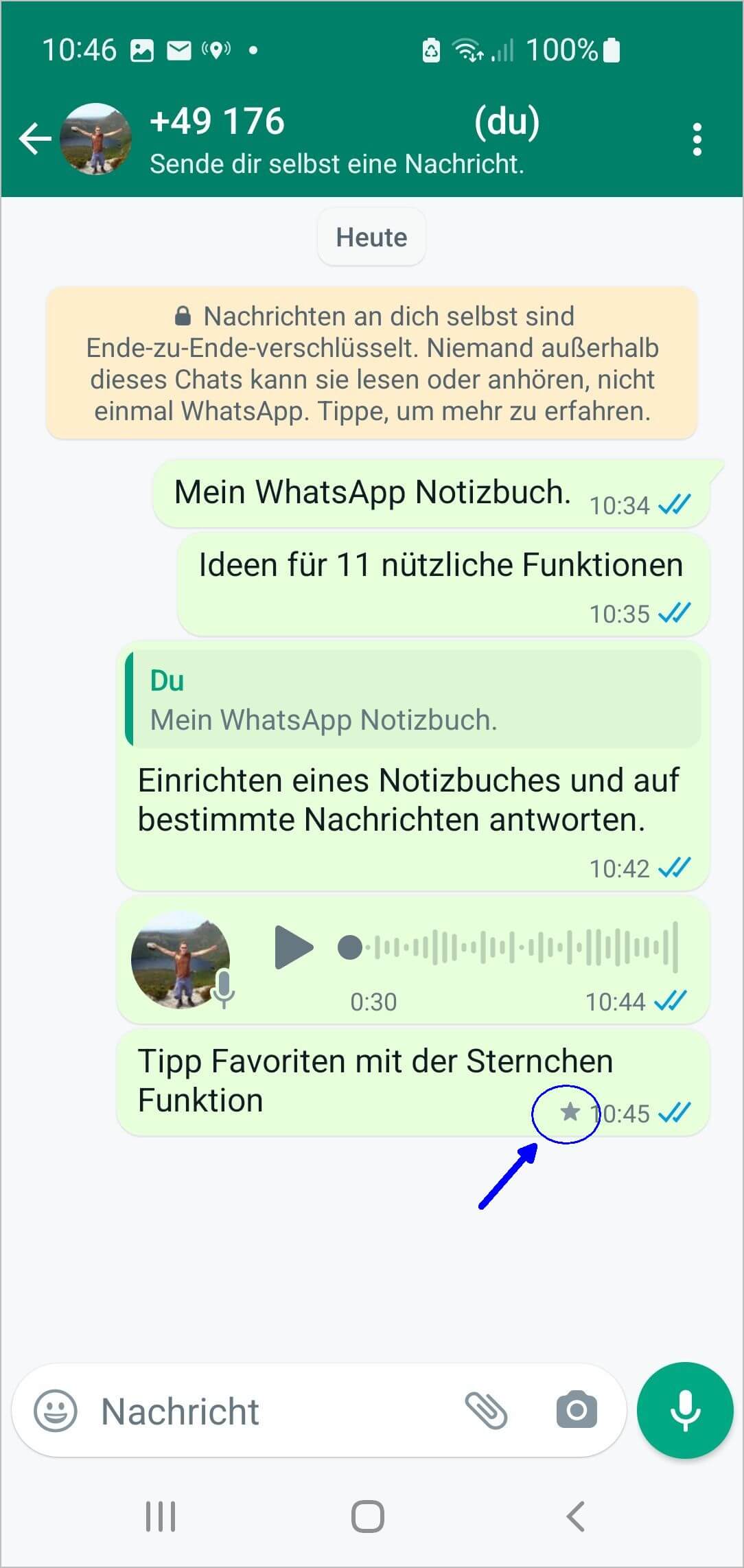
You can mark important messages with a star. To do this, simply tap a message briefly, then tap the star symbol. All messages you have marked in this way will then be available for quick access.
Via the three dots and "Starred messages", you can view all messages marked with a star - even from different people.
So, if several people are writing items for your shopping list via WhatsApp again, simply mark these messages with a star. And then you have this information readily available - in one chat.
9. Share location
You've made plans to meet somewhere in nature, but your friends can't find the exact spot? A WhatsApp feature can help here, as you can share your current location with friends at any time within the app. Simply go into the chat and click on the paperclip icon. Instead of documents or pictures, you will now share your location. Important: Of course, you must have activated GPS or the corresponding function for the app beforehand.
Then you send a picture of your location. You have the choice between
- Current location – where you are right now
- Live location. Here, the recipients can track where you are or where you are moving. You can activate this "live tracking" for 15 minutes, an hour, or even up to 8 hours.
10. Disable read receipts
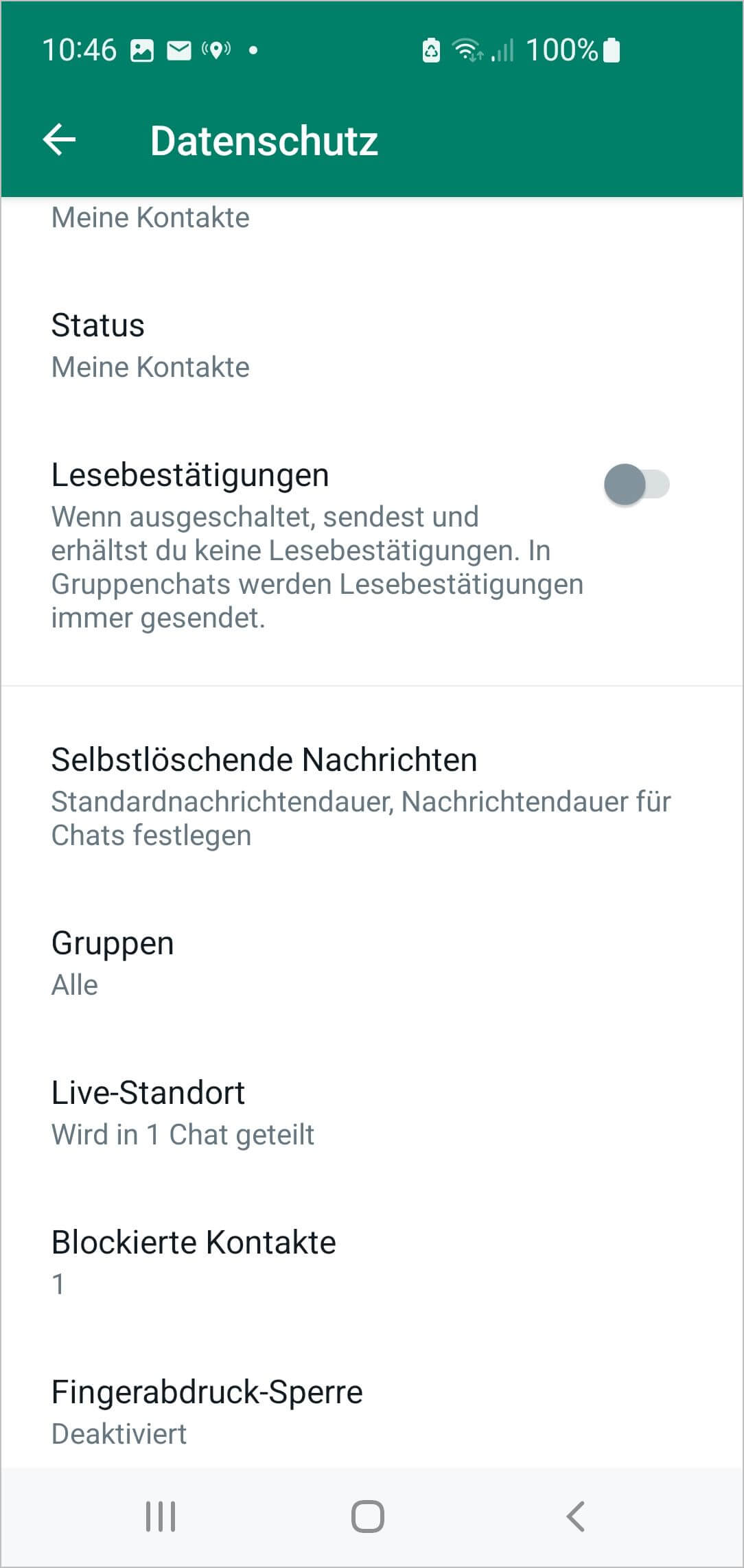
One tick for sent, two ticks for delivered, and two blue ticks for read: you are certainly familiar with the symbols behind chats. What some, however, don't know, is that read receipts (blue ticks) can be deactivated.
Here's how: Settings, Account, Privacy, and then deactivate the Read Receipts option.
No one will then get 2 blue ticks from you when you have read the message. But you will also no longer know when your message has been read. Equal rights for everyone. Of course, you can change the setting again at any time.
In the same place, you can also define your online status. So, if you don't want everyone to see when you were last online, you can adjust this for yourself under "Last seen/Online".
11. Link important chats to the home screen
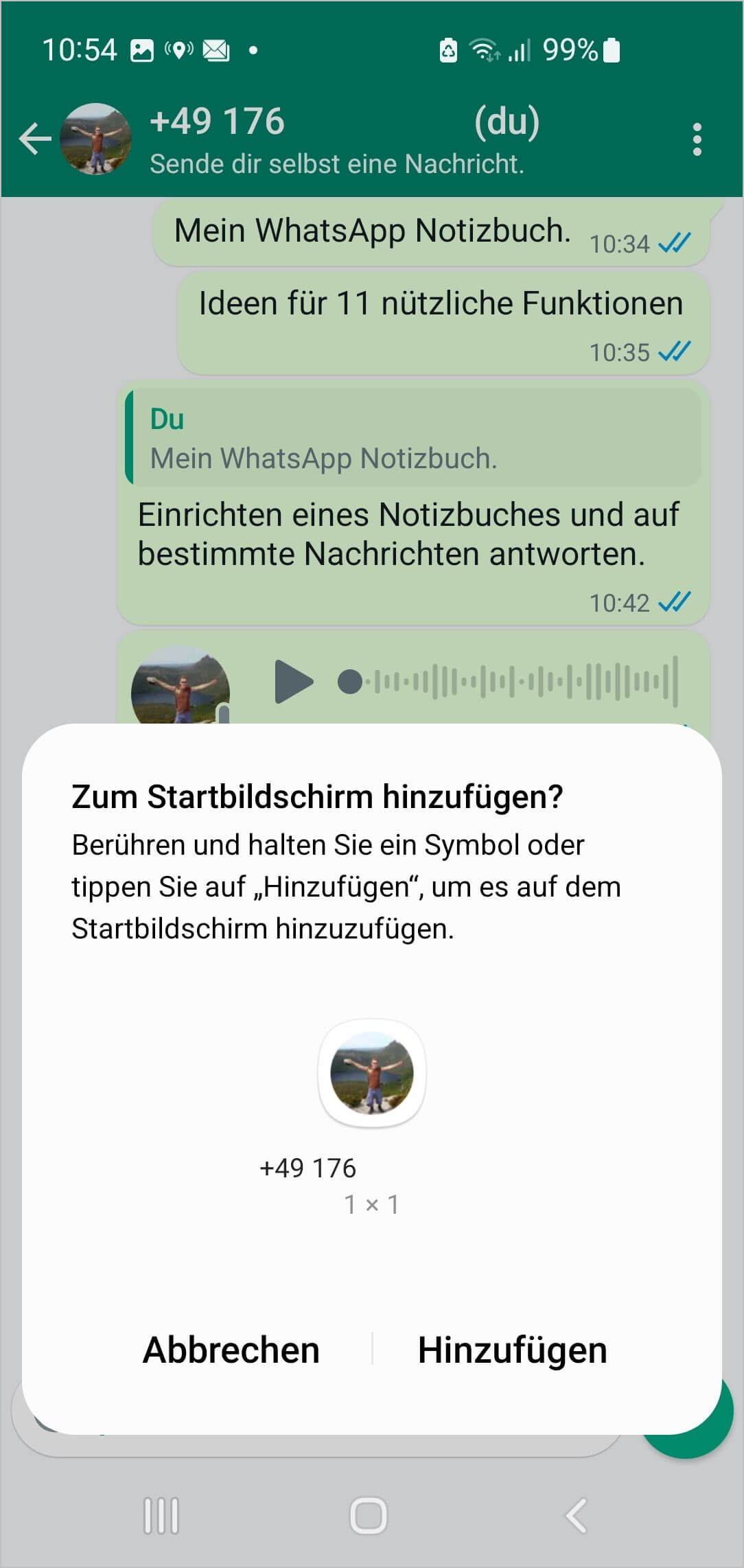
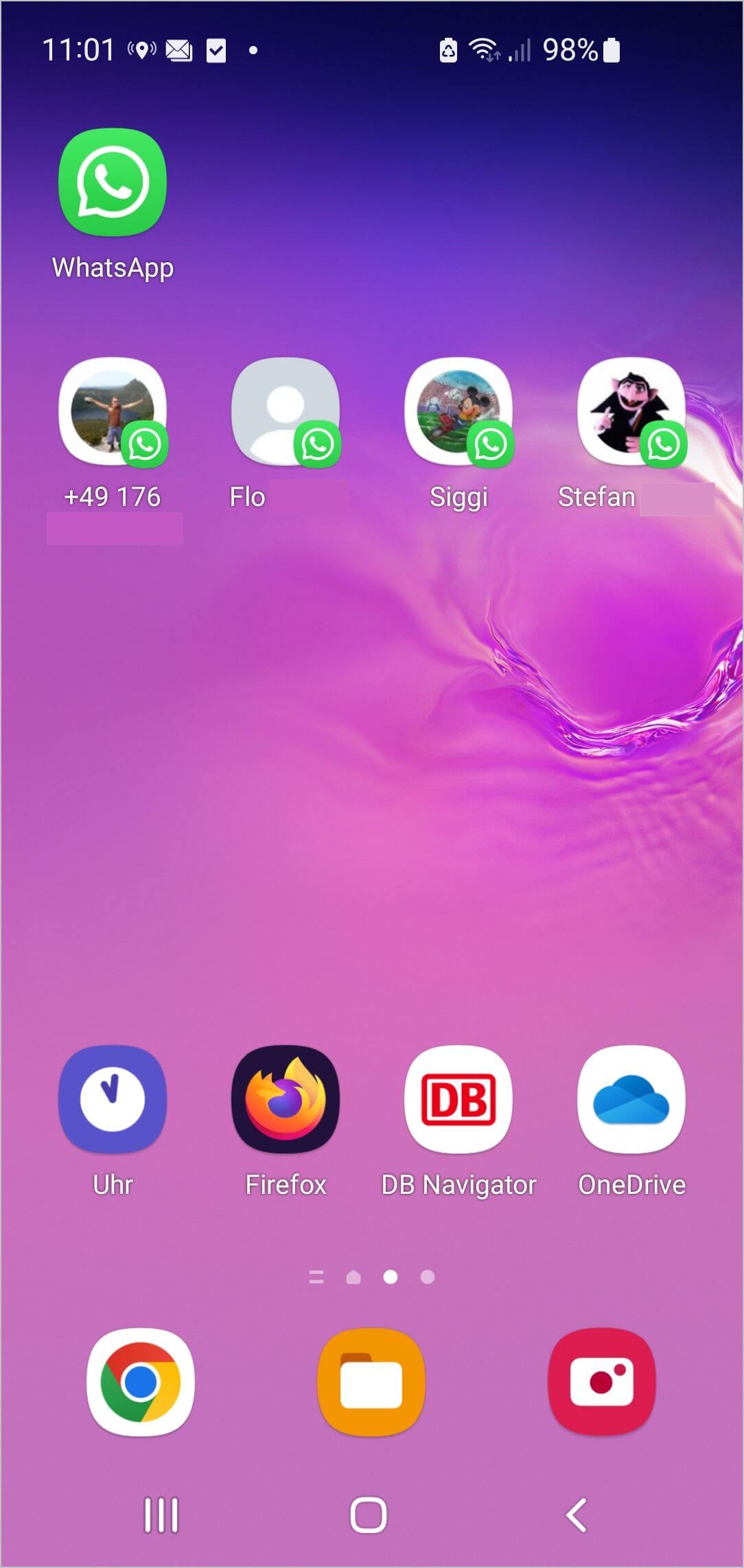
Do you have a few contacts or groups that are so important to you, or that you use so frequently, that you'd like to access the chat in the app directly from your home screen? Then create a shortcut to this chat and this person/group on your home page. It's very simple:
Go to the respective chat, three dots symbol, More, Add shortcut. All chats linked in this way will now be displayed on your home screen. For example, you could link your chat to yourself – i.e., your notebook – (see first tip). This way, you'll always have it ready with one click.
Dozens of further tips and tricks for WhatsApp – for Android and iPhone.
Got a taste for it? Of course, what we could show you about this app here was only "the tip of the iceberg."
If you want to know more about this app, we have something special for you: a free 160-page e-book titled "Optimal WhatsApp Usage." Here you'll find dozens of other tips and tricks for this app, as well as everything you need to know and every new WhatsApp feature – for every smartphone/mobile phone, for Android and for iPhone (iOS).
This book is now in its 4th edition and you can get it from us for free.
Enjoy your newly acquired knowledge and reading the free e-book.


