

When your Windows PC suddenly won't boot up, the worries are usually very great. Is the hard drive defective, do I have a virus, will I be able to get my system up and running again, and will I be able to back up my most important data: These and similar questions occupy users for days, and the internet is full of helpful tips and tools. We also offer a valuable first-aid tool for such a scenario with the Rescue Stick. Less common, however, is the phenomenon that your Windows computer no longer wants to shut down. Here, the suffering is usually somewhat less, because in an emergency, you simply leave the PC on, pull the plug, or hold down the power button on the laptop until it turns off. In the long run, this is of course no solution, and eventually you start looking for solutions here as well.
Experience report with a Windows PC that won't shut down
That's what happened to me recently. Whether with a keyboard shortcut, mouse, or touchpad: My Windows laptop simply wouldn't shut down and turn off. Neither clicking "shut down" nor "restart" worked. Not even via the Ctrl and ESC key combination or a shut-down function in another program. Nothing happened. I waited two days and hoped the problem would somehow resolve itself. Sometimes it does. Not here, unfortunately. Then I started researching as well and discovered and tried out 7 common solutions that usually solve this problem and lead to success. These will be described in the following blog post. However, something completely different helped me in the end...
1. Briefly unplug the PC
If you hold the power button on a laptop long enough, it will turn off. This, or pulling the power cord from a desktop PC, is always equivalent to a PC crash, but they are reliable ways to disconnect the computer from power and thus turn it off. The first method, which is said to work very often, is:
- Briefly unplug the PC / laptop.
- Then remove the battery.
- Wait approximately 10 minutes.
- Then restart and try to shut down the Windows computer again.
This was my first attempt. I had even waited several hours (much longer than necessary) because I had done something else in between. Unfortunately, this step did not work for me, and I had to resort to another tip.
2. PC won't shut down: Check startup programs
Programs or a program in the startup folder can prevent Windows from shutting down. To check this option, you should open your Task Manager and look under the Startup tab. You can access the Task Manager either via the so-called "three-finger salute" (Ctrl + Alt + Del), or by right-clicking on the taskbar and then selecting the Startup tab.
Disable all programs in startup and try shutting down again. If it works, gradually enable your desired programs until you have identified the "guilty" program. Solving PC problems this way is more of a process.

I was actually surprised by everything I had in startup and how much it slowed down my system at boot time. This was especially true for Microsoft Edge and Cortana. But even after I had disabled everything (including the antivirus) in startup, the computer wouldn't shut down. So I reactivated the antivirus and tried something else.
3. Repair Windows system files using the command prompt
Corrupted system files can also prevent shutdown. Windows has an internal repair program that you can use to check your system in this regard. Here's how:
- Open the Start menu and type "cmd".
- The command prompt will appear; run it as an administrator by right-clicking.

- Now enter this command: sfc /scannow and confirm with Enter.
- After the scan, you will receive a list of errors in the system that Windows has repaired.

This repair can also be done easier and faster with tuning tools such as AVG PC-Tune-Up. I used that too.
This was my third attempt to solve the problem, and several errors were indeed found and fixed. Could I then shut down my computer again? Unfortunately no. This step did not bring the solution, and my search continued.
4. Force shutdown using the command prompt
If the command "sfc /scannow" (see Tip 3) does not work within the command prompt, there is a second command you can try: "shutdown /p". Also executed as an administrator, this forces the shutdown. After a successful shutdown – so the plan – you start up and the error is fixed after a clean restart.
In my case, this unfortunately didn't work. The forced shutdown had worked – but it took significantly longer than usual and didn't solve the problem. New start, same problem. And even shutdown /p via the command prompt only worked about every second time. So another tip from the list was needed.
5. PC won't shut down: Disable Fast Startup
The Fast Startup feature can also prevent Windows from shutting down. This feature is enabled by default in most systems and only needs to be disabled. Here's how:
- Open the Control Panel.
- In the "View by" small icons, click on Power Options.
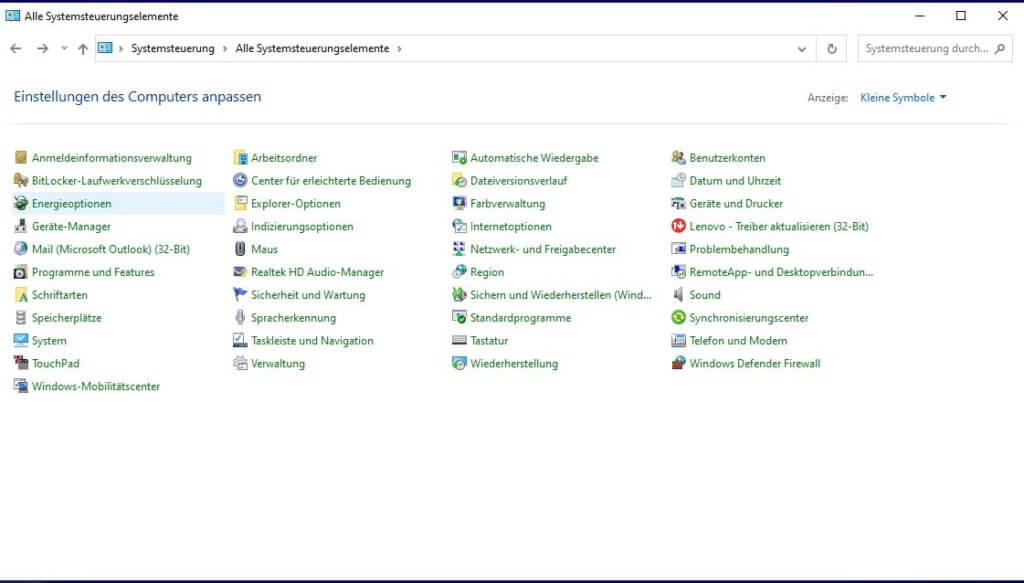
- Here, click on "Choose what the power buttons do".

- Next, click on "Change settings that are currently unavailable" to expand the menu.
- Then, uncheck "Turn on fast startup (recommended)" to disable it.

I also disabled this feature. Unfortunately without success, and the search for the solution continued.
6. Update system and install the latest Windows update
We have explained the importance of regularly applying updates in several blog posts. Among others, here: Update software – close security vulnerabilities.
To check if you are using the latest Windows version, proceed as follows:
- Click on Settings in the Start menu and then on Updates & Security.
- Click on "Check for updates". A search process will then be initiated, and your PC will search for and install the latest updates.

Caution! Tip No. 6 should be handled with care.
In my case, there was indeed an update that had not yet been installed, which I found after the search. However, the installation proved to be very difficult. The reason was actually clear: my PC wouldn't shut down. Thus, the update could not be installed because a clean restart was not possible. I had to forcibly abort the update (system crash) (after a very, very long wait). Since a system crash in the middle of a Microsoft update is pretty much the dumbest thing that can happen, it took many attempts afterwards until the PC booted up correctly again. At times I even feared having exacerbated the damage. Even though this tip is in sixth place – and is also mentioned as a possibility by other advice sites – I would advise against it and put it at the end of any list that solves the problem.
7. Choose a past system restore point
If options 1 to 6 have not worked – and if the following extra tip also doesn't work – then reset the PC via a restore point. Choose a point in time when shutting down still worked. This approach should solve your problem in most cases.
After options 1 to 6 didn't work for me and none of the solutions could repair my PC, I was actually on the verge of choosing a restore point. I was only a few clicks away from executing it and about to perform the task; but then I paused briefly before starting. Actually, with this type of system restore, it is not necessary to back up your data, because only the system is brought back to an earlier state. Your own data remains untouched. So much for the functional description in theory. Nevertheless, I wanted to play it safe and back up my data before resetting the PC. I took an external hard drive with enough free space, plugged it into a free USB port, and shortly thereafter I realized the solution to my problem...
Before the explanation follows and you find out which step solved my problem: If you want to know more about restore points, simply check back on our blog in two to three weeks. Because this topic is a bit more extensive and therefore worth its own blog post.

PC won't shut down: The solution / the extra tip:
8. Remove all hardware from the PC - and don't overlook anything
Never before had any connected external hard drive, connected printer, or any other hardware on my PC prevented it from shutting down properly. Nor had it ever affected my PC's startup. Consequently, the idea that it could have something to do with this seemed somewhat far-fetched to me. Of course, I tried it early on, and I even unplugged my USB wireless mouse. Unsuccessfully, as I initially thought.
However, when I plugged in my external hard drive, I noticed that all the while I had been looking for solutions and trying things, I had a micro SD card (in an adapter) in the card slot - unnoticed. It was only when I plugged in the hard drive that I saw this in Explorer. Although an SD card in the card slot is almost a permanent state, and my PC had never refused to shut down because of it before. But before resetting as hinted in step 7, I wanted to try that. So, SD card out, external hard drive also removed, and lo and behold... the PC shut down perfectly normally again. Without any problems.


